Rive Blink Animation: How to Make Any Character Feel Alive With 3 Keyframes
Character animation always felt overwhelming to me. Not technically — just conceptually.
How do you actually make something feel alive?
I spent a long time thinking it required complex rigs, advanced State Machines, hours of planning before you could even start.
Then I tried something small.
A blink.
That's it. One blink — even the most basic one — and suddenly the character feels like it's breathing.
That's where we're starting.
In this guide, you'll learn two ways to build a blink animation in Rive:
- A simple method using Scale Y — good for basic shapes
- A professional method using masking — for complex eye designs that can't distort
And more importantly, you'll understand why each method exists, and when to use which one.
Download the Blink Starter File
The starter file from the blink tutorial. Open it in Rive and build both blink methods along with the video.
Method 1: Blink Animation in Rive Using Scale Y
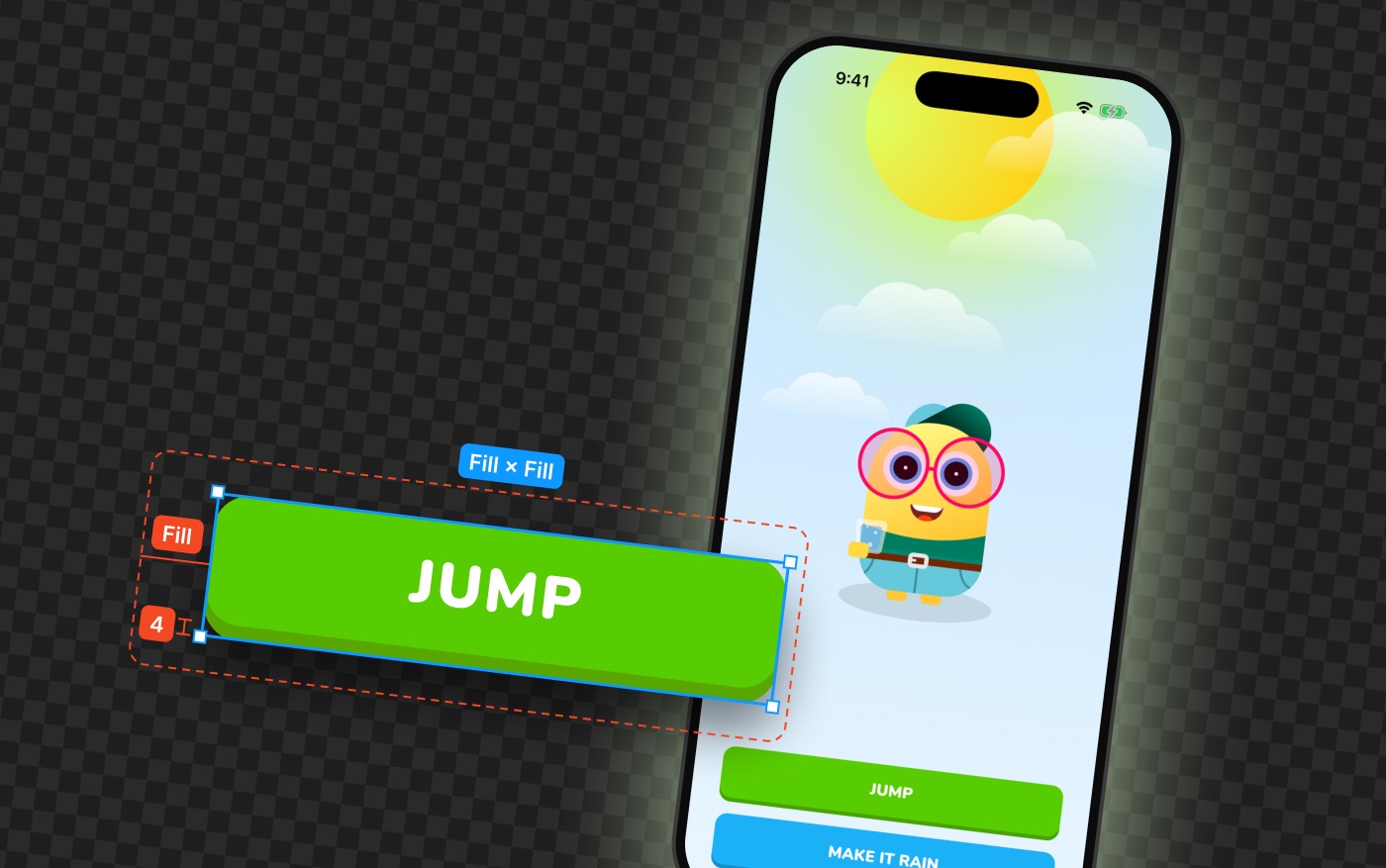
The fastest way to build a blink in Rive is by animating the Scale Y property.
Step by step:
- Group both eyes into a single group.
- Switch to Animate Mode.
- Add a keyframe to Scale Y at 100% — open position.
- Move forward on the timeline and set Scale Y to 0% — closed position.
- Apply easing. Cubic / Ease In-Out works well here.
The easing step matters more than most people expect.
Without it, the blink is mechanical. The eyes snap open and closed at a constant speed — it reads like a machine, not a character.
With Ease In-Out, the motion accelerates and decelerates naturally. That small adjustment is the difference between a toggle and a blink.
For simple character designs, this is often enough.
But there's a problem.
Why Scaling Breaks in Complex Eye Designs
As soon as your eye becomes more detailed — eyelashes, highlights, pupils, irregular vector shapes — Scale Y stops working.
The geometry stretches. The highlights compress. The style breaks.
This is one of the most common places where designers get stuck with Rive character animation. The instinct is to fix the scaling. But the real answer is:
Don't animate the eye.
Animate a mask.
Method 2: Professional Blink Animation Using Masking in Rive
This is how production-ready character animation in Rive is structured.
Instead of squashing the eyes, you create a rectangle that acts as a clip mask. You animate the mask moving up and down — and the eyes stay completely intact underneath.
Rive Masterclass + Rive Scripting
Master Rive for real products.
Get Both for $219Both courses for $219. Save $49.
Rive Masterclass + Rive Scripting
Master Rive for real products.
Both courses for $219. Save $49.
Here's the process:
- Create a rectangle that covers the full eye area.
- Group the rectangle — always animate groups, never raw shapes.
- On your Eyes group, add a Clip.
- Assign the rectangle group as the clipping mask.
- In your animation, keyframe the mask's Scale Y from 100% to 0%.
When you play it back, the eyes aren't being distorted.
They're being hidden by the mask — just like real eyelids closing from the top and bottom.
Why this method is better:
- No geometry distortion
- Works with complex vector designs, including eyelashes and highlights
- Compatible with interactive systems and State Machines
- Scales cleanly across multiple characters in the same file
- Matches the way professional character animation in Rive is actually built
Once you understand masking in Rive, a lot of other animation problems start to solve themselves.
Structure Matters as Much as the Technique
The real takeaway from this blink exercise isn't the specific keyframes.
It's how you think about structure.
By separating the mask from the eye design, grouping intentionally, and avoiding destructive animation techniques, you end up with a system — not just an animation.
That means you can:
- Swap out eye designs without rebuilding the blink logic
- Add cursor tracking without touching the blink animation
- Build different blink speeds for different character personalities
- Reuse the same setup across multiple characters
In Rive, structure determines how far you can go.
A blink built the right way is already a foundation for a full character animation system.
What Comes Next
The blink is a starting point.
Once you understand masking and keyframe animation in Rive, you can build on it:
- Eye tracking with State Machines
- Cursor-follow logic tied to mouse position
- Eyelid animation with more nuanced timing
- Blink speed and personality variations per character
- Reactive UI animations that respond to real user behavior
Final Thought
One blink. That's all it takes to make a character feel alive. Start there. Understand the structure behind it.
Everything in character animation grows from here.
Get more Rive tips
Weekly tutorials, new lessons, and Rive community highlights — no spam.