Rive's scripting and AI agent changed how I approach complex animations.
In this tutorial, I built a dynamic lightning effect using Rive scripting and the AI Agent. No complex code. Instead, I used a workflow I like to call vibe coding: describe the behavior you want, let the AI generate the logic, and refine it step by step.
Here's how it works.
Starting with a Simple Line
Every complex animation starts with something simple.
In this case, the concept was basic: draw a line when the user clicks on the screen. The lightning starts from the top of the artboard and travels to the click position.
To make it flexible, I created several inputs: screen width, screen height, and animation speed.
Inputs are one of the most useful concepts in Rive. They let you control animation behavior dynamically, without rewriting the animation itself.
Here's the prompt I used for the AI agent:
Let's start with a very simple lightning prototype in a Rive Node Script.
Goal:
When the user clicks the artboard, draw a simple straight line that goes from the top edge of the artboard down to the click position.
Behavior:
- The start of the line should always be at the top edge of the artboard (Y = 0).
- The X position of the start should be random across the artboard width so every lightning strike begins from a different horizontal position.
- The end of the line should be exactly at the click position.
Animation:
- The line should be drawn very quickly toward the click point (like electricity traveling).
- After the line finishes drawing, it should fade out quickly.
- Use the Animation speed input to control the speed of the animation.
Style:
- Use a simple white line.
- Thickness should be 1.
- No glow, no randomness in shape, no branches.
Inputs:
- artboardWidth
- artboardHeight
- Animation speed
Important:
Keep the implementation extremely simple.
Do not add extra visual effects yet.
Focus only on creating a straight line that draws quickly from the top edge to the click position.
Make sure it's working.
Let's start with a very simple lightning prototype in a Rive Node Script.
Goal:
When the user clicks the artboard, draw a simple straight line that goes from the top edge of the artboard down to the click position.
Behavior:
- The start of the line should always be at the top edge of the artboard (Y = 0).
- The X position of the start should be random across the artboard width so every lightning strike begins from a different horizontal position.
- The end of the line should be exactly at the click position.
Animation:
- The line should be drawn very quickly toward the click point (like electricity traveling).
- After the line finishes drawing, it should fade out quickly.
- Use the Animation speed input to control the speed of the animation.
Style:
- Use a simple white line.
- Thickness should be 1.
- No glow, no randomness in shape, no branches.
Inputs:
- artboardWidth
- artboardHeight
- Animation speed
Important:
Keep the implementation extremely simple.
Do not add extra visual effects yet.
Focus only on creating a straight line that draws quickly from the top edge to the click position.
Make sure it's working.
Let's start with a very simple lightning prototype in a Rive Node Script.
Goal:
When the user clicks the artboard, draw a simple straight line that goes from the top edge of the artboard down to the click position.
Behavior:
- The start of the line should always be at the top edge of the artboard (Y = 0).
- The X position of the start should be random across the artboard width so every lightning strike begins from a different horizontal position.
- The end of the line should be exactly at the click position.
Animation:
- The line should be drawn very quickly toward the click point (like electricity traveling).
- After the line finishes drawing, it should fade out quickly.
- Use the Animation speed input to control the speed of the animation.
Style:
- Use a simple white line.
- Thickness should be 1.
- No glow, no randomness in shape, no branches.
Inputs:
- artboardWidth
- artboardHeight
- Animation speed
Important:
Keep the implementation extremely simple.
Do not add extra visual effects yet.
Focus only on creating a straight line that draws quickly from the top edge to the click position.
Make sure it's working.
Turning a Line into Lightning
A straight line doesn't look like lightning.
Real lightning has irregular zigzag patterns, so I asked the script to distort the line by shifting segments left and right.
This created a natural lightning shape. To get more control over the effect, I added a new input: Lightning Randomness. This parameter controls how chaotic the lightning path becomes.
Update the previous lightning script.
Currently the lightning is a straight line.
Improve it so the lightning looks more natural and electric.
Behavior:
- Instead of a perfectly straight line, the lightning should be made of several connected segments.
- Each segment should shift slightly left or right so the line becomes a zig-zag shape.
- The lightning should still start at the top edge of the artboard.
- The lightning should still end exactly at the click position.
Control:
Add an input called:
- lightningRandomness
This value should control how far the lightning can shift sideways.
Small values make the lightning almost straight.
Large values make it more chaotic.
Constraints:
- Keep the lightning animation the same (fast draw toward the click).
- Do not add glow, color controls, or extra effects yet.
- Only change the shape of the lightning so it becomes zig-zag instead of straight
Update the previous lightning script.
Currently the lightning is a straight line.
Improve it so the lightning looks more natural and electric.
Behavior:
- Instead of a perfectly straight line, the lightning should be made of several connected segments.
- Each segment should shift slightly left or right so the line becomes a zig-zag shape.
- The lightning should still start at the top edge of the artboard.
- The lightning should still end exactly at the click position.
Control:
Add an input called:
- lightningRandomness
This value should control how far the lightning can shift sideways.
Small values make the lightning almost straight.
Large values make it more chaotic.
Constraints:
- Keep the lightning animation the same (fast draw toward the click).
- Do not add glow, color controls, or extra effects yet.
- Only change the shape of the lightning so it becomes zig-zag instead of straight
Update the previous lightning script.
Currently the lightning is a straight line.
Improve it so the lightning looks more natural and electric.
Behavior:
- Instead of a perfectly straight line, the lightning should be made of several connected segments.
- Each segment should shift slightly left or right so the line becomes a zig-zag shape.
- The lightning should still start at the top edge of the artboard.
- The lightning should still end exactly at the click position.
Control:
Add an input called:
- lightningRandomness
This value should control how far the lightning can shift sideways.
Small values make the lightning almost straight.
Large values make it more chaotic.
Constraints:
- Keep the lightning animation the same (fast draw toward the click).
- Do not add glow, color controls, or extra effects yet.
- Only change the shape of the lightning so it becomes zig-zag instead of straight
Adding Visual Styling
Once the lightning shape worked, I moved on to the visual design.
I added controls for lightning color, line thickness, and glow intensity. Lightning is essentially a source of light, so adding a glow makes it feel much more realistic.
To create this glow, I added a second blurred line behind the lightning, using a feathered blur and adjustable opacity. This let me fine-tune the look directly from the inputs panel.
Update the previous lightning script.
Keep all existing behavior the same:
- The lightning still starts from a random X position at the top edge of the artboard.
- The lightning still ends exactly at the click position.
- The lightning still uses the zig-zag shape.
- The lightning still draws quickly toward the click point and fades out.
Now add styling controls.
Inputs:
- lightningColor - the main color of the lightning bolt. Default value: #FFFFFF
- lightningThickness - controls the thickness of the lightning line.
- lightningFeather - controls how soft the glow around the lightning is. Default value: 50
- lightningFeatherColor - the color of the glow around the lightning. Default value: #B4C8FF
- lightningGlowOpacity - controls the opacity of the glow layer. Default value: 0.5 (50%)
Rendering behavior:
The lightning should be rendered using two strokes:
1) Glow stroke
- Drawn first (behind the lightning)
- Uses lightningFeatherColor
- Uses lightningFeather to create a soft glow
- Opacity should be controlled by lightningGlowOpacity
2) Core lightning stroke
- Drawn on top
- Uses lightningColor
- Uses lightningThickness
- Full opacity
The final result should look like a white lightning bolt with a soft blue glow around it.
Constraints:
- Do not change the lightning shape or animation.
- Only extend the script with styling inputs.
- Keep the implementation simple and clean
Update the previous lightning script.
Keep all existing behavior the same:
- The lightning still starts from a random X position at the top edge of the artboard.
- The lightning still ends exactly at the click position.
- The lightning still uses the zig-zag shape.
- The lightning still draws quickly toward the click point and fades out.
Now add styling controls.
Inputs:
- lightningColor - the main color of the lightning bolt. Default value: #FFFFFF
- lightningThickness - controls the thickness of the lightning line.
- lightningFeather - controls how soft the glow around the lightning is. Default value: 50
- lightningFeatherColor - the color of the glow around the lightning. Default value: #B4C8FF
- lightningGlowOpacity - controls the opacity of the glow layer. Default value: 0.5 (50%)
Rendering behavior:
The lightning should be rendered using two strokes:
1) Glow stroke
- Drawn first (behind the lightning)
- Uses lightningFeatherColor
- Uses lightningFeather to create a soft glow
- Opacity should be controlled by lightningGlowOpacity
2) Core lightning stroke
- Drawn on top
- Uses lightningColor
- Uses lightningThickness
- Full opacity
The final result should look like a white lightning bolt with a soft blue glow around it.
Constraints:
- Do not change the lightning shape or animation.
- Only extend the script with styling inputs.
- Keep the implementation simple and clean
Update the previous lightning script.
Keep all existing behavior the same:
- The lightning still starts from a random X position at the top edge of the artboard.
- The lightning still ends exactly at the click position.
- The lightning still uses the zig-zag shape.
- The lightning still draws quickly toward the click point and fades out.
Now add styling controls.
Inputs:
- lightningColor - the main color of the lightning bolt. Default value: #FFFFFF
- lightningThickness - controls the thickness of the lightning line.
- lightningFeather - controls how soft the glow around the lightning is. Default value: 50
- lightningFeatherColor - the color of the glow around the lightning. Default value: #B4C8FF
- lightningGlowOpacity - controls the opacity of the glow layer. Default value: 0.5 (50%)
Rendering behavior:
The lightning should be rendered using two strokes:
1) Glow stroke
- Drawn first (behind the lightning)
- Uses lightningFeatherColor
- Uses lightningFeather to create a soft glow
- Opacity should be controlled by lightningGlowOpacity
2) Core lightning stroke
- Drawn on top
- Uses lightningColor
- Uses lightningThickness
- Full opacity
The final result should look like a white lightning bolt with a soft blue glow around it.
Constraints:
- Do not change the lightning shape or animation.
- Only extend the script with styling inputs.
- Keep the implementation simple and clean
Adding a Lightning Flash
Real lightning usually creates a quick flash of light across the sky.
To simulate this, I added a full-screen flash that triggers briefly during the middle of the lightning animation. This added a strong visual impact and made the lightning feel more energetic.
Update the previous lightning script.
Keep all existing behavior the same:
- The lightning still spawns from the top edge of the artboard.
- The starting X position is random.
- The lightning travels to the click position.
- The zig-zag shape remains the same.
- The styling system (lightningColor, lightningThickness, lightningFeather, lightningFeatherColor, lightningGlowOpacity) should remain unchanged.
Add a screen flash effect.
Setup:
Create a rectangle that covers the entire artboard.
This rectangle will act as a temporary flash layer.
Timing behavior:
- The flash should NOT appear immediately when the lightning starts.
- Add a very small delay after the lightning begins drawing.
- After this short delay, the flash should briefly brighten the screen.
The idea is that the lightning begins first, and a moment later the screen lights up from the energy.
Flash animation:
1) After the short delay, quickly brighten the screen.
2) Add a small flicker effect.
3) Then fade the flash out quickly.
Rendering:
- The flash should appear behind the lightning so the bolt stays visible.
- The flash should not modify the lightning shape or animation.
Constraints:
- Do not change the lightning generation logic.
- Only add the delayed flash effect.
- Keep the implementation simple
Update the previous lightning script.
Keep all existing behavior the same:
- The lightning still spawns from the top edge of the artboard.
- The starting X position is random.
- The lightning travels to the click position.
- The zig-zag shape remains the same.
- The styling system (lightningColor, lightningThickness, lightningFeather, lightningFeatherColor, lightningGlowOpacity) should remain unchanged.
Add a screen flash effect.
Setup:
Create a rectangle that covers the entire artboard.
This rectangle will act as a temporary flash layer.
Timing behavior:
- The flash should NOT appear immediately when the lightning starts.
- Add a very small delay after the lightning begins drawing.
- After this short delay, the flash should briefly brighten the screen.
The idea is that the lightning begins first, and a moment later the screen lights up from the energy.
Flash animation:
1) After the short delay, quickly brighten the screen.
2) Add a small flicker effect.
3) Then fade the flash out quickly.
Rendering:
- The flash should appear behind the lightning so the bolt stays visible.
- The flash should not modify the lightning shape or animation.
Constraints:
- Do not change the lightning generation logic.
- Only add the delayed flash effect.
- Keep the implementation simple
Update the previous lightning script.
Keep all existing behavior the same:
- The lightning still spawns from the top edge of the artboard.
- The starting X position is random.
- The lightning travels to the click position.
- The zig-zag shape remains the same.
- The styling system (lightningColor, lightningThickness, lightningFeather, lightningFeatherColor, lightningGlowOpacity) should remain unchanged.
Add a screen flash effect.
Setup:
Create a rectangle that covers the entire artboard.
This rectangle will act as a temporary flash layer.
Timing behavior:
- The flash should NOT appear immediately when the lightning starts.
- Add a very small delay after the lightning begins drawing.
- After this short delay, the flash should briefly brighten the screen.
The idea is that the lightning begins first, and a moment later the screen lights up from the energy.
Flash animation:
1) After the short delay, quickly brighten the screen.
2) Add a small flicker effect.
3) Then fade the flash out quickly.
Rendering:
- The flash should appear behind the lightning so the bolt stays visible.
- The flash should not modify the lightning shape or animation.
Constraints:
- Do not change the lightning generation logic.
- Only add the delayed flash effect.
- Keep the implementation simple
Making the Lightning Feel Alive
Finally, I added one last animation layer.
As the lightning appears, the line distorts slightly over time, creating a subtle vibration effect. This produces a small flicker that makes the lightning feel more natural and alive.
Update the lightning behavior.
When a lightning bolt appears, briefly regenerate the zig-zag shape a few times during the reveal animation.
Behavior:
- The lightning shape should change slightly for a few frames.
- Each variation should use slightly different random offsets.
- This should create a flickering electrical effect.
After a short moment the lightning should settle and fade out
Update the lightning behavior.
When a lightning bolt appears, briefly regenerate the zig-zag shape a few times during the reveal animation.
Behavior:
- The lightning shape should change slightly for a few frames.
- Each variation should use slightly different random offsets.
- This should create a flickering electrical effect.
After a short moment the lightning should settle and fade out
Update the lightning behavior.
When a lightning bolt appears, briefly regenerate the zig-zag shape a few times during the reveal animation.
Behavior:
- The lightning shape should change slightly for a few frames.
- Each variation should use slightly different random offsets.
- This should create a flickering electrical effect.
After a short moment the lightning should settle and fade out
Putting Everything Together
To demonstrate the final effect, I placed the lightning inside a small scene:
A cloudy sky background
Animated clouds using keyframe animation
A rain generator built with another Node Script
The lightning script we created
When you run the scene, the lightning appears dynamically across the sky, sometimes triggered by clicks and sometimes generated randomly.
The result is a fully dynamic storm system built from simple components.
The Power of Modular Animation
What makes this workflow effective is the modular approach.
I didn't build the lightning all at once. Instead, I built it step by step:
A simple line
Zigzag distortion
Dynamic inputs
Visual styling
Glow
Flash
Vibration
Each layer added more complexity while keeping the system easy to modify.
This modular thinking is essential when building interactive animation systems in Rive.
Going Further
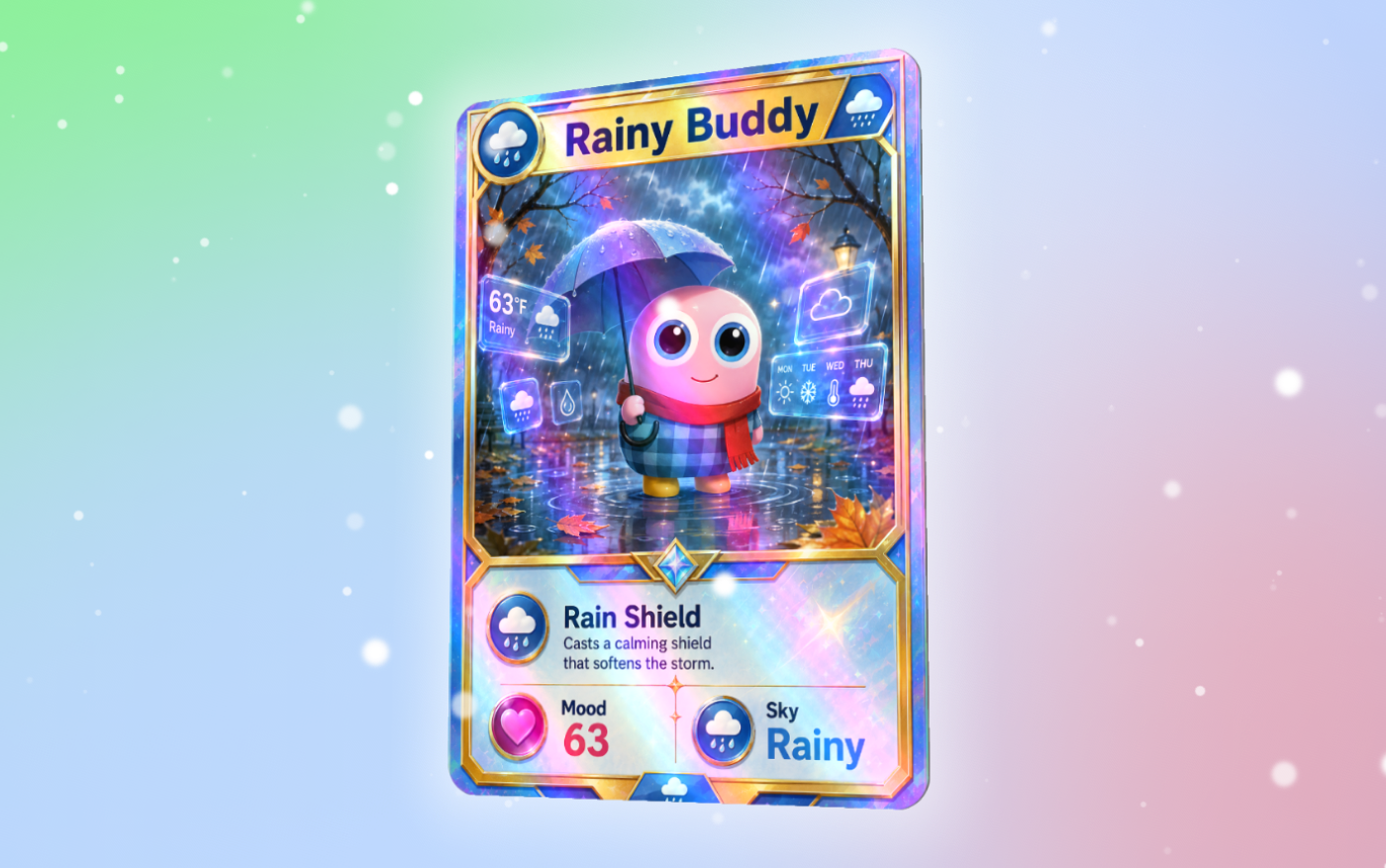
If you want to go deeper into Rive animation, scripting, and interactive systems, I cover this entire workflow in much more depth in my Rive Masterclass.
In the course, we build a complete interactive weather app with multiple weather conditions, characters, and dynamic animations.
You can also start with the free Rive Scripting mini-course if you want to get comfortable with scripting first.
Final Thoughts
Using a vibe coding workflow, I turned a simple idea into a dynamic lightning animation. No complex code required.
Once you understand this approach, you can apply it to any animation system you want to build.